 Open Seizure Detector
Free, Open Source tools to Alert Carers if someone suffers an Epileptic Seizure
Setting Up OpenSeizureDetector as a Remote Alarm Receiver (Network Mode)
This guide explains how to set up a second Android phone (or tablet) as a remote alarm receiver for an existing OpenSeizureDetector installation. This is useful when the person being monitored is in a different room and you need alarm notifications on a second device, for example a phone carried by a carer overnight.
How Network Mode Works
[PineTime / Garmin watch]
         |
         | Bluetooth
         v
[Primary phone running OSD]  <-- detects seizures, raises alarms
         |
         | Wi-Fi (same local network)
         v
[This phone in Network mode] <-- receives alarm notifications remotely
Both devices must be on the same Wi-Fi network.
Before You Start
You will need:
- A second Android phone or tablet running Android 8.0 or later
- An existing OpenSeizureDetector installation on a primary device (with a watch connected)
- Both devices on the same Wi-Fi network
- The IP address of the primary device (see below)
Finding the Primary Device IP Address
On the primary phone, open OpenSeizureDetector and look at the System tab. You will see a line like:
Access Server at: http://192.168.1.50:8080
The four numbers separated by dots (e.g. 192.168.1.50) are the IP address you need.
Alternatively, find the IP address in your router’s connected devices list.
Step 1 - Welcome Screen
Install OpenSeizureDetector on the second device. When you first launch it, the setup wizard starts automatically.
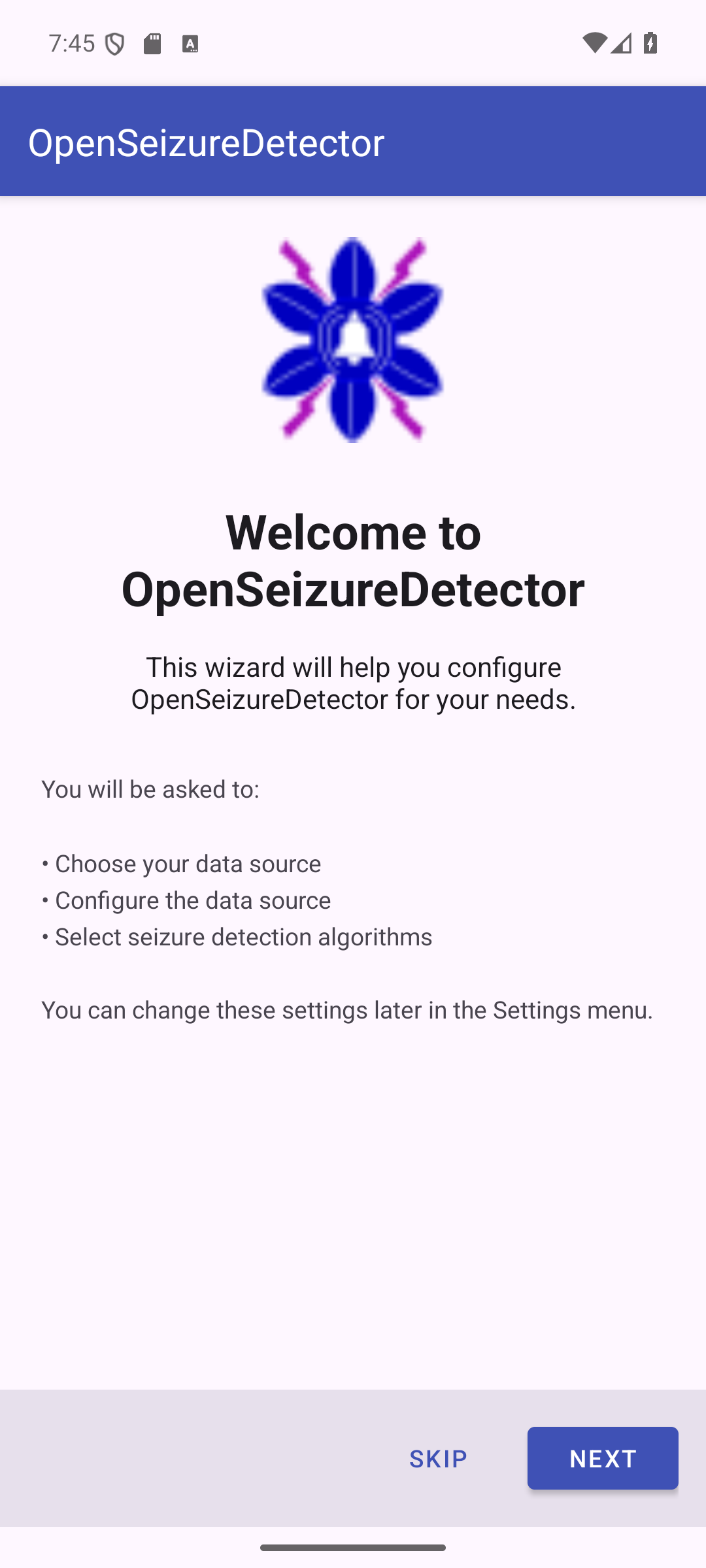
Press Next to continue.
Step 2 - Choose Data Source
On the Choose Data Source screen, select Network (Remote Monitoring).
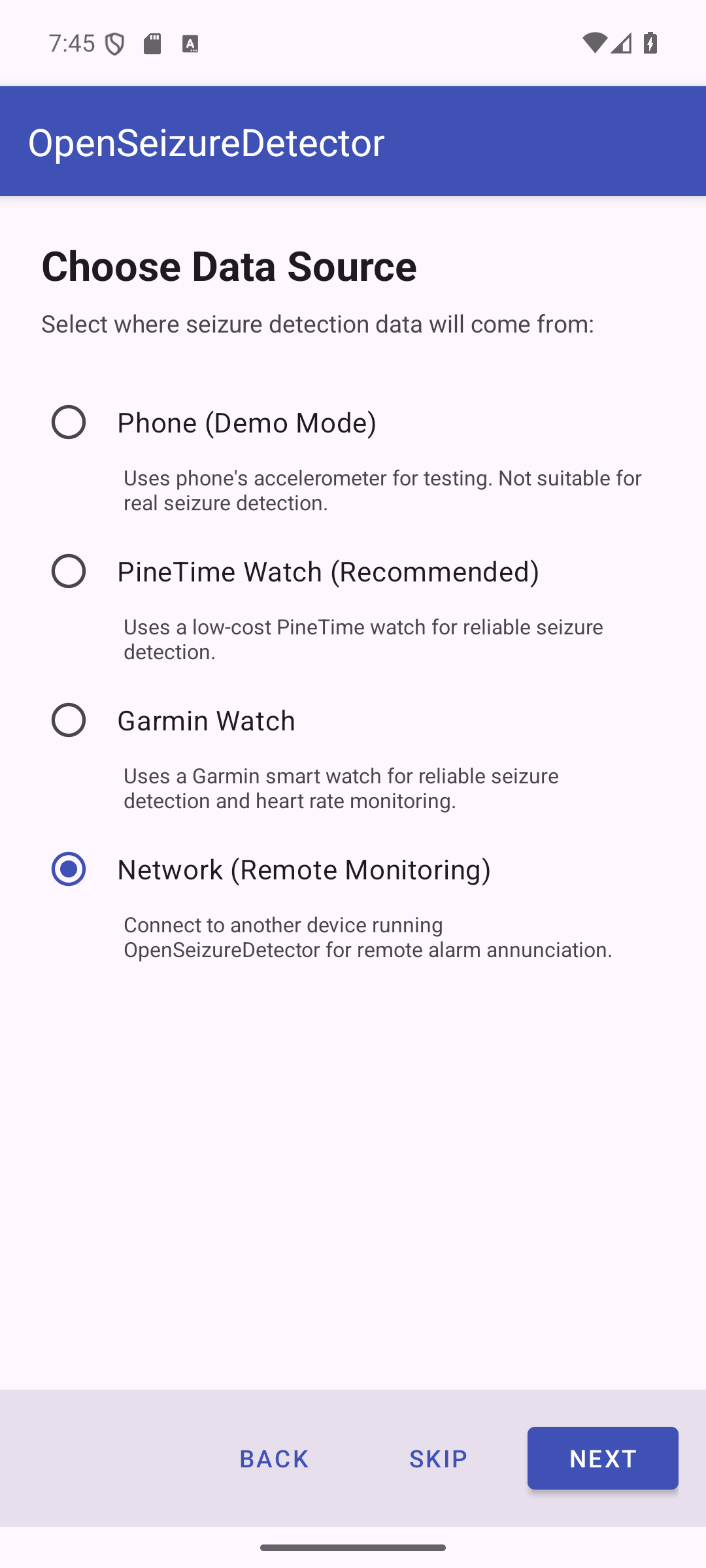
| Option | Description |
|---|---|
| Phone (Demo Mode) | Uses the phone accelerometer - for testing only |
| PineTime Watch (Recommended) | PineTime wrist watch seizure detection |
| Garmin Watch | Garmin smart watch seizure detection |
| Network (Remote Monitoring) | Receives alarms from another OSD device on your Wi-Fi |
Press Next to continue.
Step 3 - Configure Network Connection
The network configuration screen asks for the IP address of the primary device.
Empty state (before entering IP)
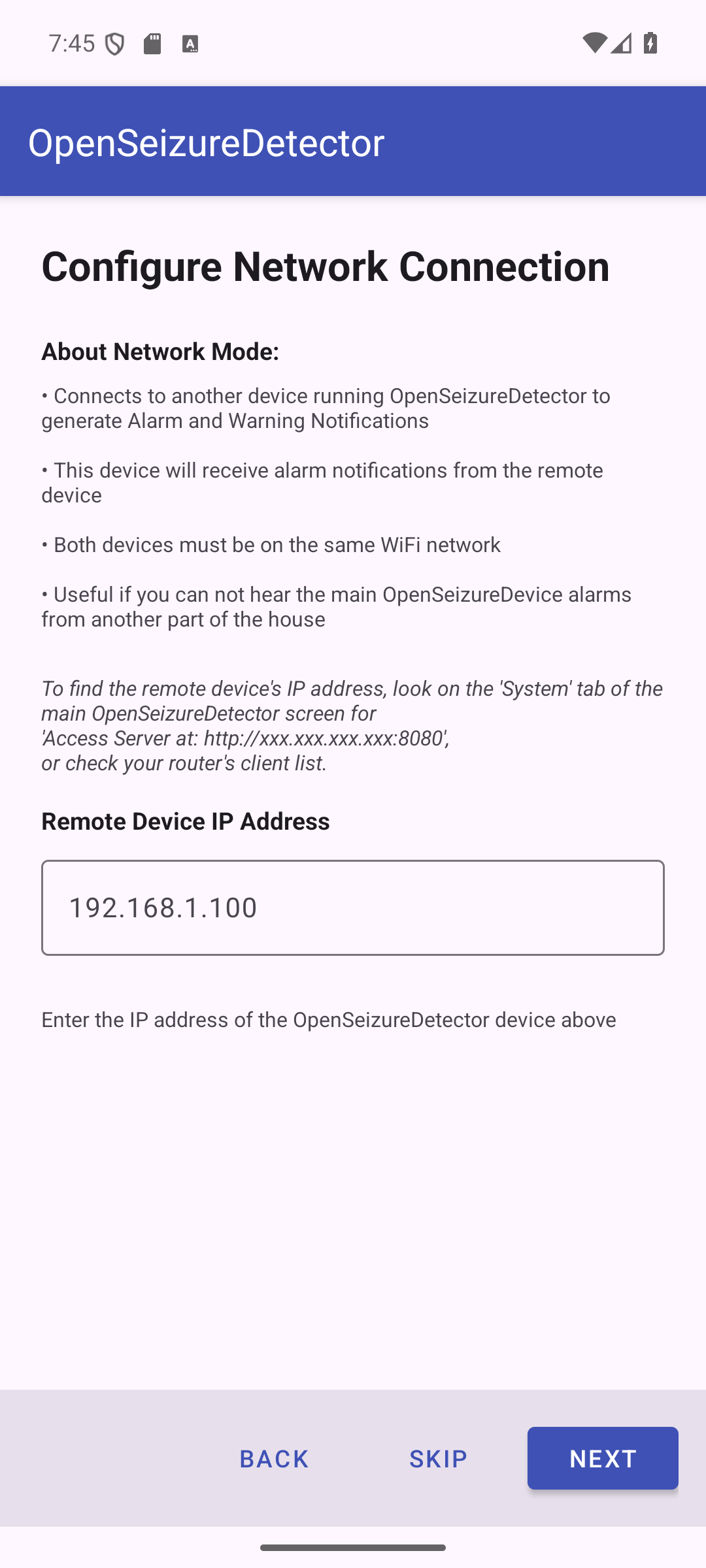
The screen explains:
- This device will receive alarm notifications from the remote (primary) device
- Both devices must be on the same Wi-Fi network
- No seizure detection algorithms run on this device - those run on the primary device
Entering the IP address
Tap the IP address field and type the IP address of the primary device.
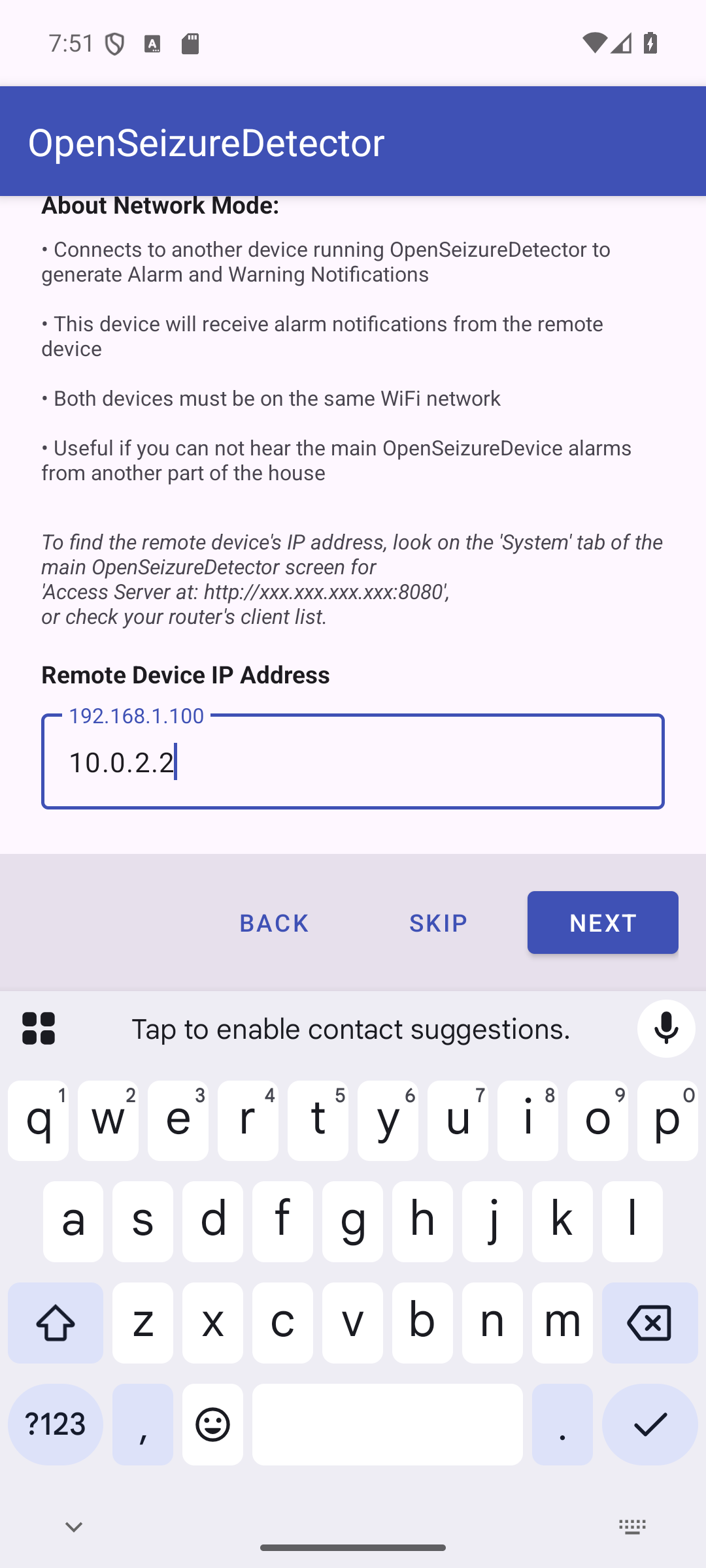
As you type a valid IP address (four numbers separated by dots, e.g. 192.168.1.50),
the app automatically attempts to connect to the primary device on port 8080.
Validation results:
| Status | Meaning |
|---|---|
| Green: Server validated successfully | Connected - tap Next to continue |
| Orange: Cannot reach server | Check IP address and that both devices are on the same Wi-Fi |
| Red: Invalid IP address format | The address format is wrong - check you have typed it correctly |
A Retry button appears if validation fails - tap it after checking your settings.
Note: The Next button only becomes enabled once the primary device is successfully reached. Algorithm selection is skipped entirely in Network mode - the algorithms are configured on the primary device.
Press Next once validation succeeds (shown in green).
Step 4 - Setup Complete
The wizard skips the algorithm selection step (since algorithms run on the primary device) and goes straight to the completion screen.
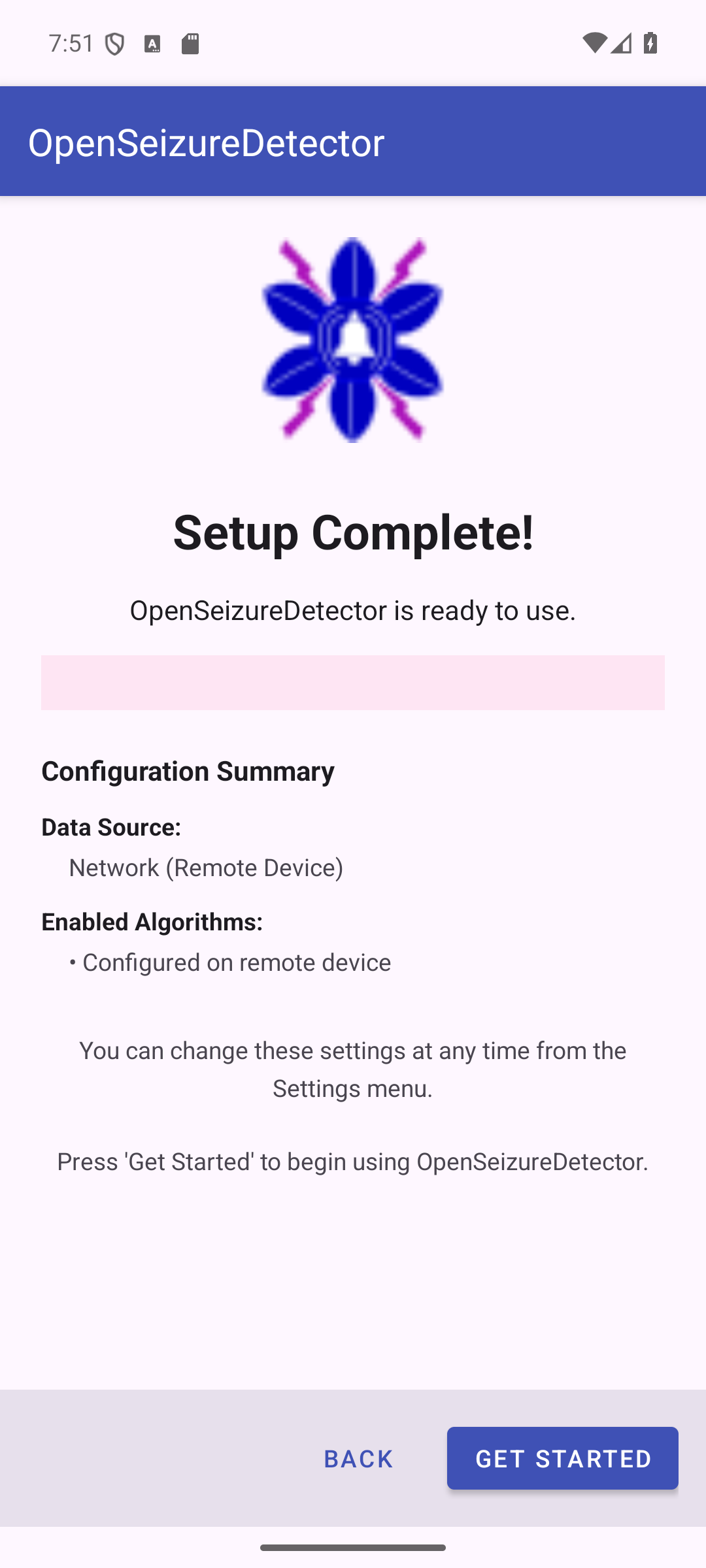
The summary shows:
- Data Source - Network (Remote Device)
- Enabled Algorithms - Configured on remote device
Press Get Started to launch the monitoring screen.
What Happens Next
- OpenSeizureDetector connects to the primary device over Wi-Fi
- The primary device sends alarm status updates every 2 seconds
- When the primary device raises a Warning or Alarm, this device:
- Sounds the alarm tone
- Displays a notification
- Shows the alarm status on screen
The second device mirrors the alarm state of the primary device in near real-time.
Important Notes
- The primary device must have OpenSeizureDetector running and connected to the watch at all times for remote monitoring to work
- If the Wi-Fi connection is lost, the secondary device will show a connection error
- The secondary device does not need a watch connected
- Alarm sensitivity and algorithm settings are controlled only on the primary device
- All settings can be changed at any time from the Settings menu
Troubleshooting
| Problem | Solution |
|---|---|
| Cannot reach server | Confirm both phones are on the same Wi-Fi network (not mobile data) |
| IP address keeps changing | Set a static IP (DHCP reservation) for the primary phone in your router settings |
| Alarm notifications not appearing | Check Android notification permissions for OpenSeizureDetector on this device |
| Validation succeeds but no alarms received | Ensure OSD is running and connected to the watch on the primary device |
| Connection drops overnight | Disable Wi-Fi sleep/power-saving on both devices |
For more information visit openseizuredetector.org.uk