 Open Seizure Detector
Free, Open Source tools to Alert Carers if someone suffers an Epileptic Seizure
Network Mode — Data Source Setup
This page covers configuring Network (Remote Monitoring) as your data source (Step 3 of the setup wizard). Network mode lets a second Android phone or tablet receive alarm notifications from an existing OpenSeizureDetector installation on a primary device.
How Network Mode Works
[PineTime / Garmin watch]
         |
         | Bluetooth
         v
[Primary phone running OSD]  <-- detects seizures, raises alarms
         |
         | Wi-Fi (same local network)
         v
[This phone in Network mode] <-- receives alarm notifications remotely
Both devices must be on the same Wi-Fi network.
You will need:
- A second Android phone or tablet running Android 8.0 or later
- An existing OpenSeizureDetector installation on a primary device (with a watch connected)
- Both devices on the same Wi-Fi network
- The IP address of the primary device (see below)
In the app, you should be on the Configure Network Connection screen.
Finding the Primary Device IP Address
On the primary phone, open OpenSeizureDetector and look at the System tab. You will see a line like:
Access Server at: http://192.168.1.50:8080
The four numbers separated by dots (e.g. 192.168.1.50) are the IP address you need.
Alternatively, find the IP address in your router’s connected devices list.
Configure Network Connection
The network configuration screen asks for the IP address of the primary device.
Empty state (before entering IP)
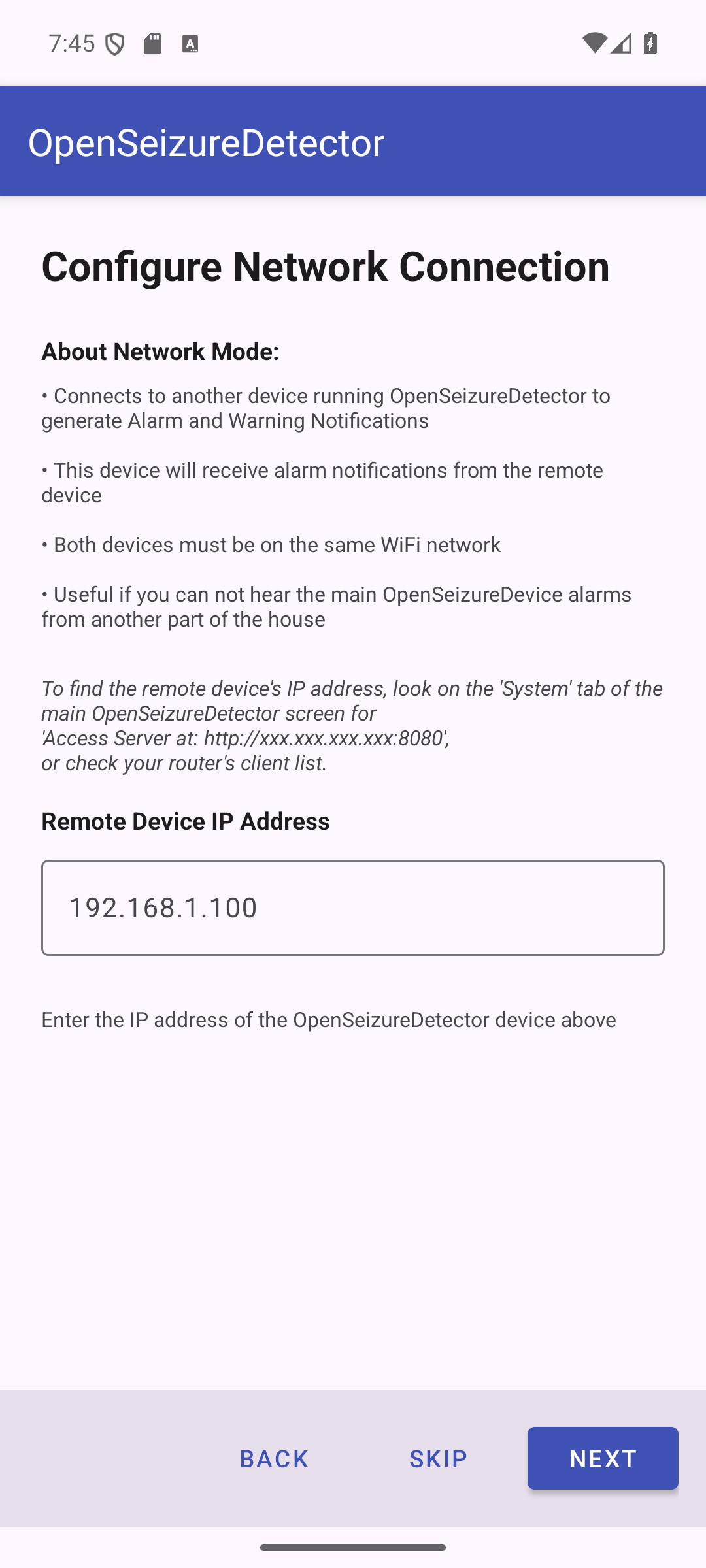
The screen explains:
- This device will receive alarm notifications from the remote (primary) device
- Both devices must be on the same Wi-Fi network
- No seizure detection algorithms run on this device — those run on the primary device
Entering the IP address
Tap the IP address field and type the IP address of the primary device.
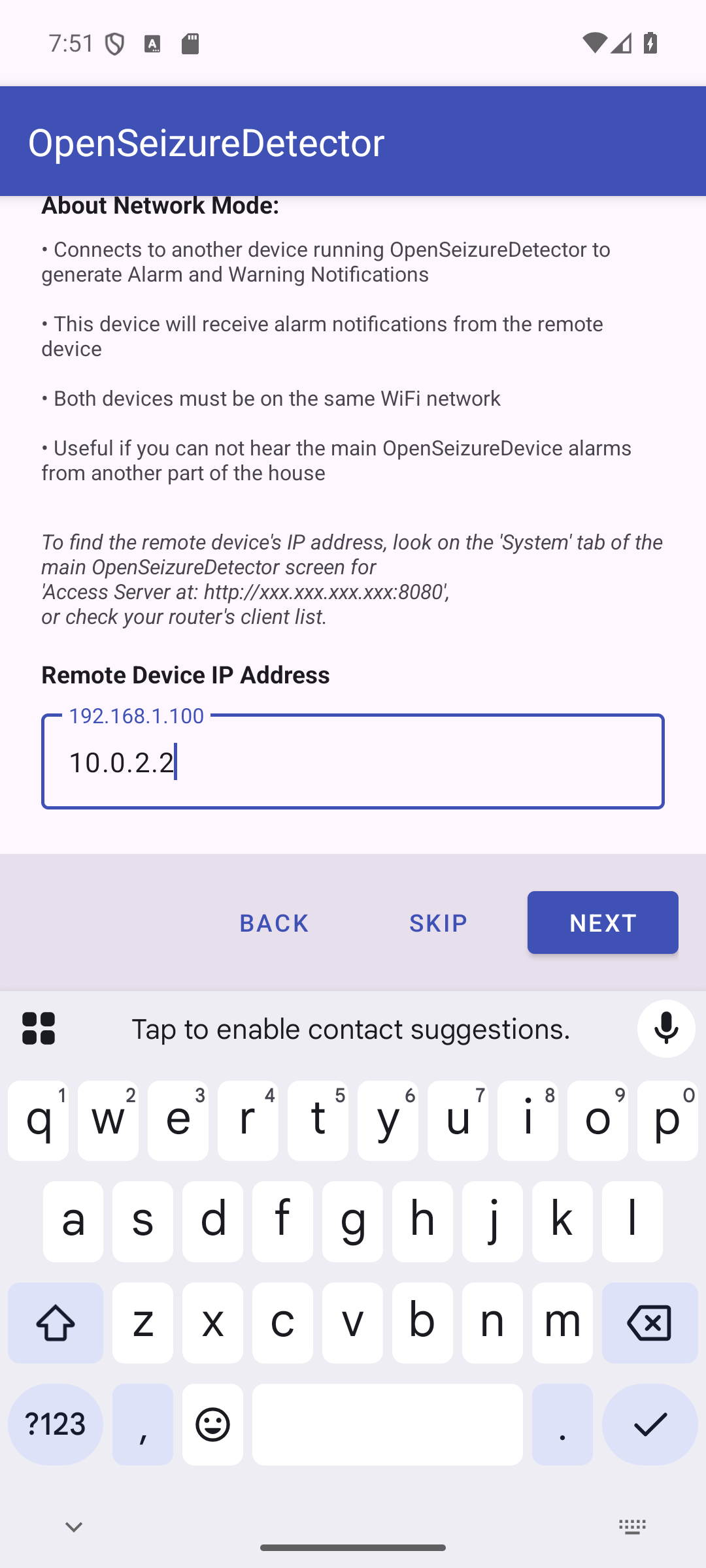
As you type a valid IP address (four numbers separated by dots, e.g. 192.168.1.50),
the app automatically attempts to connect to the primary device on port 8080.
Validation results:
| Status | Meaning |
|---|---|
| Green: Server validated successfully | Connected — tap Next to continue |
| Orange: Cannot reach server | Check IP address and that both devices are on the same Wi-Fi |
| Red: Invalid IP address format | The address format is wrong — check you have typed it correctly |
A Retry button appears if validation fails — tap it after checking your settings.
Note: The Next button only becomes enabled once the primary device is successfully reached. Algorithm selection is skipped entirely in Network mode — the algorithms are configured on the primary device.
Press Next once validation succeeds (shown in green).
Once the network connection is validated and you have pressed Next, your data source setup is complete. Return to the main setup guide for the setup completion screen.
Network mode reminder: Algorithm selection is skipped — jump to Setup Complete on the main setup page.
← Back to Main Setup — proceed to Setup Complete
Important Notes
- The primary device must have OpenSeizureDetector running and connected to the watch at all times for remote monitoring to work
- If the Wi-Fi connection is lost, the secondary device will show a connection error
- The secondary device does not need a watch connected
- Alarm sensitivity and algorithm settings are controlled only on the primary device
- All settings can be changed at any time from the Settings menu
Troubleshooting
| Problem | Solution |
|---|---|
| Cannot reach server | Confirm both phones are on the same Wi-Fi network (not mobile data) |
| IP address keeps changing | Set a static IP (DHCP reservation) for the primary phone in your router settings |
| Alarm notifications not appearing | Check Android notification permissions for OpenSeizureDetector on this device |
| Validation succeeds but no alarms received | Ensure OSD is running and connected to the watch on the primary device |
| Connection drops overnight | Disable Wi-Fi sleep/power-saving on both devices |
For more information visit openseizuredetector.org.uk