 Open Seizure Detector
Free, Open Source tools to Alert Carers if someone suffers an Epileptic Seizure
Garmin Watch — Data Source Setup
New users: If you do not already own a Garmin watch, consider the low-cost (approx. £35) PineTime watch instead — it is cheaper and much easier to set up. The main reason to prefer Garmin is if you need the heart rate alarm feature, since Garmin HR sensors are significantly more reliable during vigorous movement.
This page covers configuring a Garmin watch as your data source (Step 3 of the setup wizard). Garmin provides reliable tonic-clonic seizure detection and, unlike the PineTime, also delivers accurate continuous heart rate monitoring.
You will need:
- A compatible Garmin watch (see Compatible Devices below)
- The Garmin Connect app installed on your phone
- A computer with a USB port (required to copy the watch app file onto the watch)
Important: The Garmin watch app file must be copied to the watch via a USB connection from a computer — this step cannot be done on a phone alone.
In the app, you should be on the Configure Garmin Watch screen.
Compatible Devices
OpenSeizureDetector works with Garmin smartwatches that support ConnectIQ SDK level 2.3 or higher. Garmin’s Compatible Devices page lists which watches support which SDK level.
The table below lists watches that are known to have been tested. If you are using a watch not listed here, please report your experience to graham@openseizuredetector.org.uk.
Note: Forerunner 35, 45 and 235 are not compatible.
| Watch | Status |
|---|---|
| Venu SQ | Avoid — known issue with freezing after several hours |
| VenuSQ 2 | Use with caution — some users report similar freezing issues, others report no problems |
| Vivoactive 3 | ✓ Works, no issues (battery life slightly shorter than VenuSQ) |
| Vivoactive 4 | ✓ Works — the 4s (small) version has short battery life (~12 hours) |
| Vivoactive 5 | Avoid — users have reported difficulties |
| Vivoactive HR | ✓ Works well — former ‘production’ device before switching to PineTime |
| Venu 2 | ✓ Works, no issues |
| Forerunner 245 | ✓ Works — battery life ~15 hours (shorter than expected) |
| Forerunner 255s | ✓ Works, no issues; good battery life (80% after 24 hours) |
| Forerunner 55 | Avoid — newer Garmin firmware causes data to be sent every 20 s instead of the required 5 s; bug reported to Garmin |
| Forerunner 735xt | ✓ Works — requires software update via Garmin Connect; use watch app V1.2 only (not newer versions); HR response is slow after watch is removed from wrist |
If you are buying a watch specifically for OpenSeizureDetector, purchase from a retailer that accepts returns in case it does not work as expected.
Phone requirements: The phone must run the full Android edition (not Android Go).
Configure Garmin Watch
The Garmin configuration screen summarises the steps needed to set up your watch.
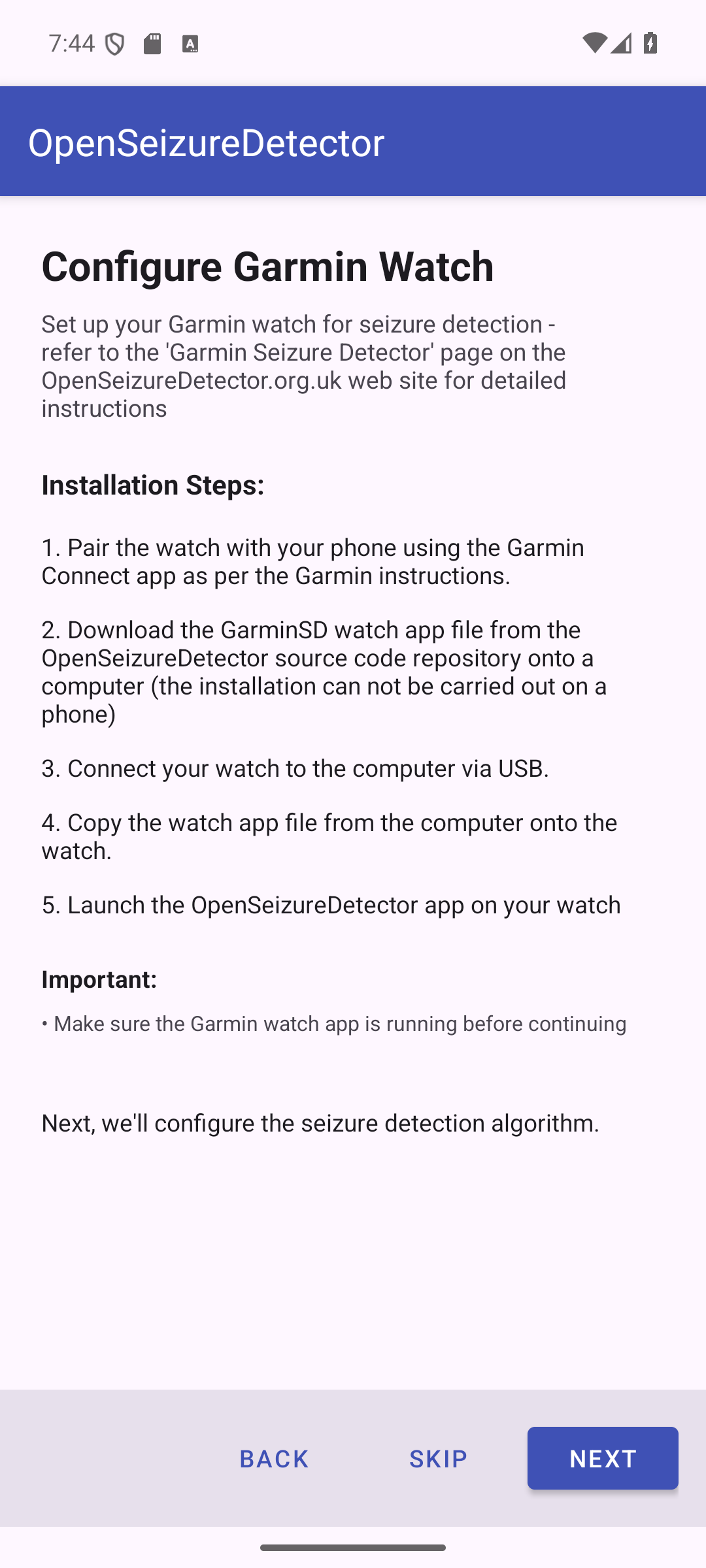
Work through each sub-step below before pressing Next.
Step 3-1 - Pair the Watch with Garmin Connect
Pair your Garmin watch with your Android phone using the Garmin Connect app, following Garmin’s standard pairing instructions for your watch model. This establishes the Bluetooth link between the phone and watch that OpenSeizureDetector uses.
Once paired, verify that Garmin Connect is successfully receiving data from the watch before continuing.
Disable watch notifications: Garmin Connect forwards phone notifications (emails, SMS, etc.) to the watch. This interferes with seizure detection data transfer and should be disabled. In the Garmin Connect app, go to Settings → Notifications → App Notifications and disable all app notifications.
Step 3-2 - Install the OpenSeizureDetector Android App
If you have not already done so, install the latest version of the OpenSeizureDetector Android app from Google Play.
Important battery setting: On your phone, search for “Optimise Battery Usage” in Settings and make sure OpenSeizureDetector is set to Not optimised — otherwise the Android system may shut it down to save power.
Also open Garmin Connect and go to Settings → Notifications → App Notifications and ensure that notifications from OpenSeizureDetector are disabled in Garmin Connect (to prevent watch buzzing that interferes with data transfer).
Step 3-3 - Install the GarminSD Watch App
There is a video walkthrough on YouTube of the steps below (note: it is slightly out of date, so read the steps here too):
1. Download the watch app file
On a computer, download the latest version of GarminSD_vx.y.z.prg from the
GarminSD releases page
on GitHub, and rename it to GarminSD.prg.
Compatibility note: If the latest release does not work on your watch, try the
v2.0.7xvariant (compiled with newer Garmin tools; works on newer watches but not some older models). Previous versions are also available in the Releases page. Rename whichever version you use toGarminSD.prgon the watch.
2. Copy the file onto the watch via USB
Connect the watch to the computer using its charging/data USB cable. The watch appears as a
removable drive. Open the watch drive and copy GarminSD.prg into the GARMIN/APPS
folder (create the folder if it does not exist).
On some older watches the file must be named exactly
GarminSD.prg(with no version number) or it will not appear in the apps list.
Safely eject the watch and disconnect the USB cable.
3. Find GarminSD in the apps list
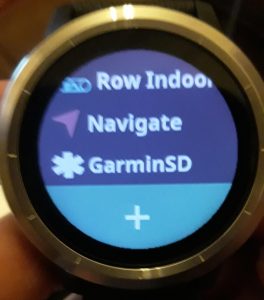
On the watch, press the main side button to open the favourites list, then scroll to the four-dots grid icon and press it to open the full apps list. Scroll to the bottom — GarminSD should appear there.
4. Start GarminSD
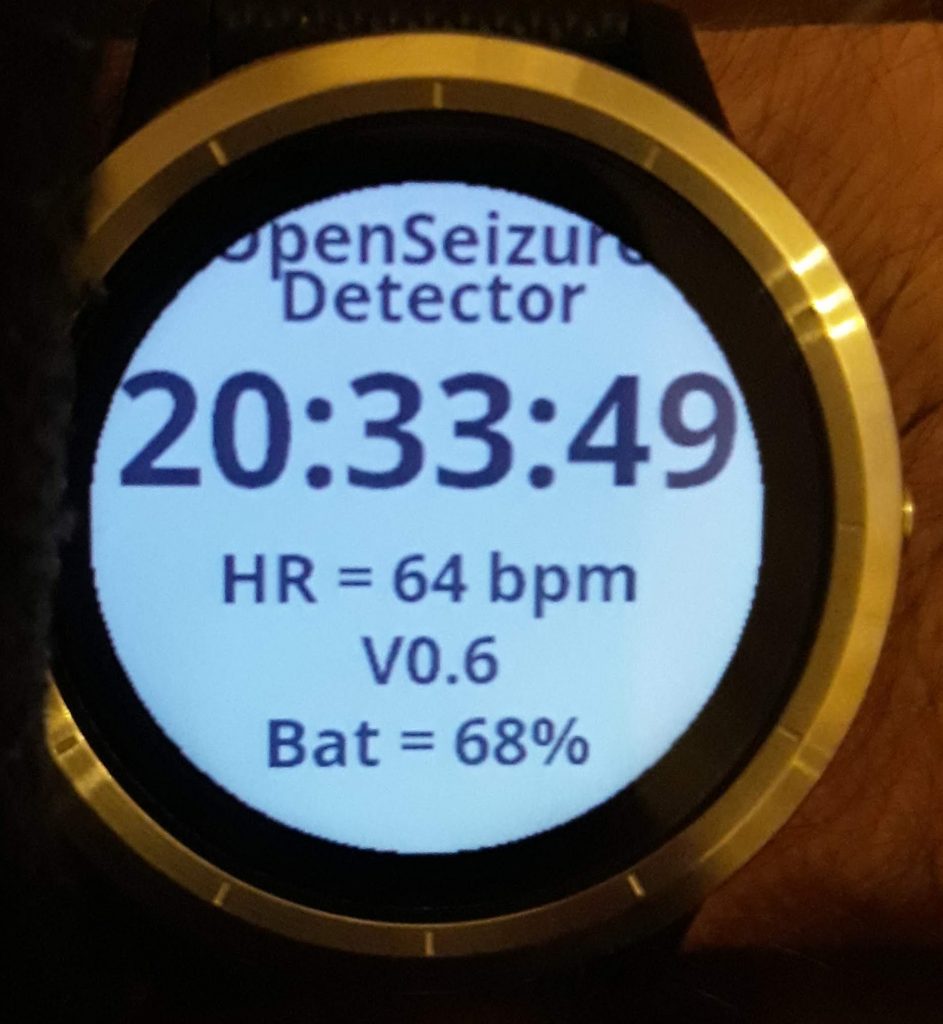
Tap GarminSD to launch it. For the first 5–10 seconds the app shows the version number:
The version number is then replaced by the live seizure detector status and heart rate:
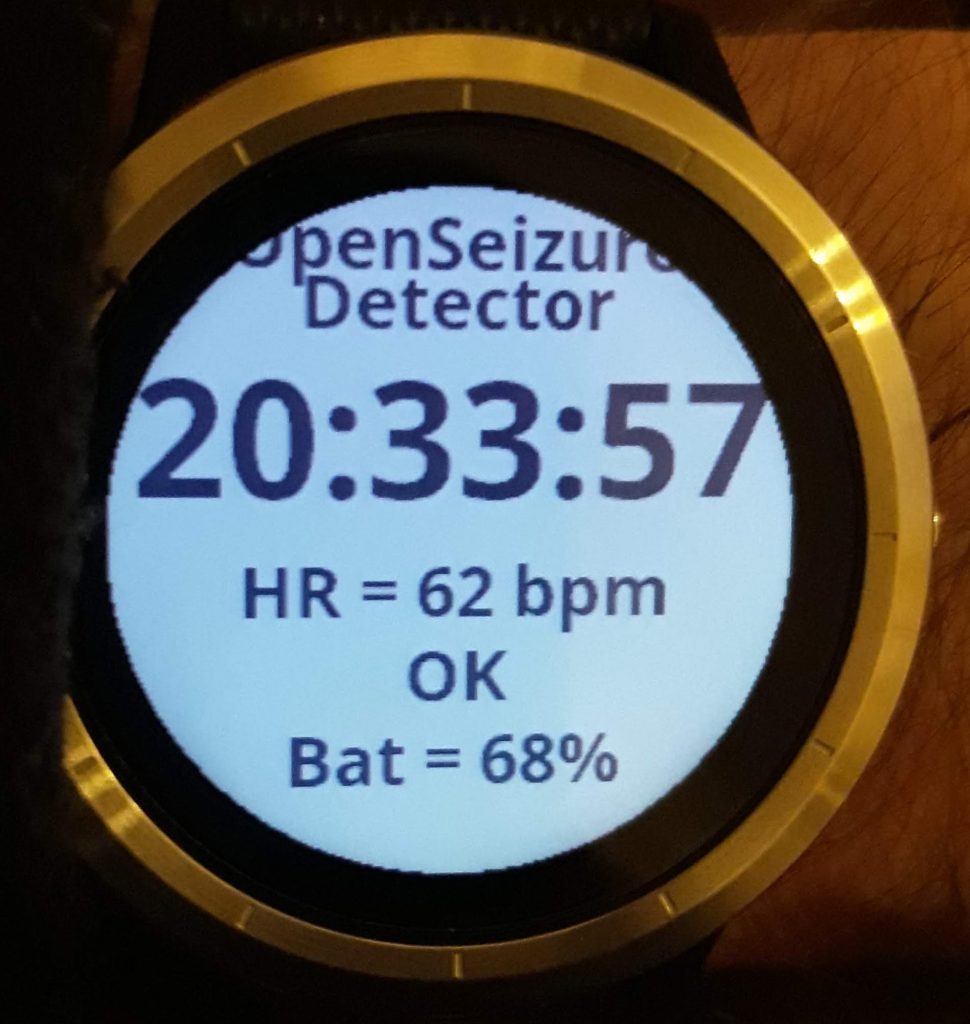
The display shows OK (or WARNING / ALARM / FAULT), the current heart rate updated every second, and the battery percentage. The GarminSD app also runs on older rectangular Garmin watches:
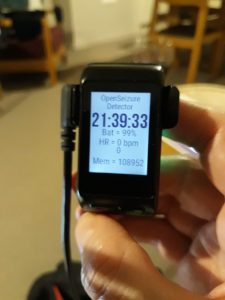
Press Next in the phone app once the GarminSD watch app is confirmed running.
Once the GarminSD watch app is running and the phone shows it connected, return to the main setup guide to continue with algorithm selection.
← Back to Main Setup — continue with algorithm selection
Starting the Watch App
The exact button layout varies by Garmin model. The instructions below are for the Vivoactive 3 — adapt as needed for your watch.
Once GarminSD.prg is installed and the watch is disconnected from the computer:
1. Open the favourites list
Press the main side button once. You see the list of favourite apps — Run, Bike, Walk and others:
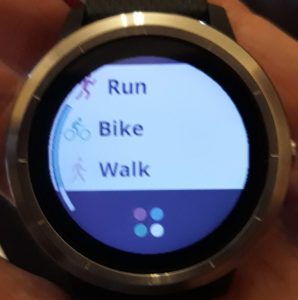
Scroll up until you see the four-dots grid icon at the bottom of the list and press it to open the full list of all installed apps.
2. Find and launch GarminSD
Scroll to the bottom of the full apps list — GarminSD should appear there. Tap GarminSD to launch it.
3. GarminSD running
For the first 5–10 seconds the app shows the firmware version number:
The version number is then replaced by the live seizure detector status and heart rate:
The display shows the status (OK / WARNING / ALARM / FAULT), the current heart rate updated every second, and the battery percentage. The app works similarly on older rectangular Garmin models such as the VivoactiveHR:
Adding GarminSD to Your Favourites
To make the app easier to start each day, add it to your favourites list:
- From the main watch face, press the main button to open the favourites list.
- Press and hold one of the app icons and select Manage Apps.
- Scroll to GarminSD and select it, then choose Add Favourite.
- Optionally remove less-used apps from the list to keep it short.
GarminSD will now appear directly in the favourites list with a single button press.
Troubleshooting
GarminSD.prg disappears from the APPS folder
On many newer Garmin watches, the GarminSD.prg file disappears from the GARMIN/APPS
folder on the computer as soon as the watch is disconnected from USB — this is normal
and expected. The watch firmware moves the file into its own internal storage when it
processes it. The app will still appear in the watch’s app list even though the file is
gone from the USB drive. You do not need to re-copy the file.
Common Problems
| Problem | Solution |
|---|---|
GARMIN/APPS folder not found on USB drive |
Create the folder manually on the watch drive, then copy GarminSD.prg into it |
| GarminSD does not appear in watch app list | Rename the file to exactly GarminSD.prg (remove any version number) and re-copy; safely eject and reconnect the watch |
| GarminSD.prg vanishes from APPS after disconnect | Normal on newer watches — the watch has imported it; check the full apps list on the watch |
Watch shows FAULT / phone shows Fault |
Check GarminSD is actively running on the watch (it shuts down when charging); also check the data source on the phone is set to Garmin not Pebble |
| Phone shows Connecting indefinitely | Re-launch GarminSD on the watch; restart OSD on the phone; check Garmin Connect shows the watch as Connected |
Display alternates between OK and FAULT |
Usually caused by the system restarting after a settings change — force-stop OSD on the phone then restart it |
| Heart rate not displayed | Wear the watch snugly on the wrist; ensure the HR sensor window on the back of the watch is clean |
| Garmin Connect pairing fails | Follow Garmin’s official pairing instructions for your specific watch model |
| Watch keeps buzzing with notifications | Disable App Notifications for OpenSeizureDetector in Garmin Connect → Settings → Notifications → App Notifications |
| OSD shut down by Android in background | Set OSD to Not optimised in your phone’s Battery Optimisation settings; some phones also need OSD set as a Protected app |
| Watch app shuts down after a while | Some watches (e.g. Fenix 6) have a power-saving timeout that closes inactive apps — adjust the activity timeout in the watch settings |
| Watch appears to work then stops after hours | Known issue with VenuSQ / VenuSQ2 models — switch to a different compatible Garmin model |
| No data received despite app appearing to run | Try: turn off phone Bluetooth; unpair the watch; go to phone Settings → Apps → OpenSeizureDetector → Storage and tap Clear Data and Clear Cache; restart phone; re-pair the watch |
| Still no data after all the above | Some phones (especially Xiaomi/Huawei) have security features that block the watch-to-app communication — try a different Android phone to confirm |
Watch Error Codes
The GarminSD watch app sometimes displays an error such as ERR -400. These codes come
from the Garmin software and indicate that the watch cannot communicate with the
OpenSeizureDetector phone app.
| Error Code | Meaning | Likely Cause |
|---|---|---|
| ERR 0 | Unknown error | Outdated watch app not compatible with the current Garmin Connect version — update to the latest GarminSD |
| ERR -104 | BLE connection unavailable | Bluetooth is off on the phone, or the watch is not paired/connected via Garmin Connect; alternatively the Android system has killed OSD to save battery — set OSD battery usage to Not optimised |
| ERR -300 | Network request timed out | The watch could not reach the OSD phone app — check OSD is running (icon in phone status bar); disable battery optimisation for OSD; check the phone’s power saving mode has not put OSD to sleep |
The full list of Garmin error codes is documented at: developer.garmin.com — Communications API
Other Notes
-
Watch cannot run other apps simultaneously — GarminSD must run in the foreground, so you cannot use other watch apps (e.g. Running) at the same time. Disable watch notifications while OSD is running to avoid interference with data transfer.
-
Watch charges = GarminSD stops — placing the watch on its charger closes GarminSD. To avoid fault alerts on the phone, open OSD on the phone and select Start/Stop Server to shut down the background service before charging the watch.
-
Multiple phones paired to the watch — if the watch is paired to both a phone and a tablet, the wrong device may receive the data. Ensure only the intended phone is connected via Garmin Connect when OSD is running.
For further troubleshooting steps and debugging instructions see: openseizuredetector.org.uk — Garmin Usage Instructions
Please report issues or successes to graham@openseizuredetector.org.uk or the OpenSeizureDetector Facebook page.